

Soccer Robot
Soccer Robot
Aim:
The main aim of the project is to make a robot to play the soccer game.
Components Required:
| Sr. No | Component | Quantity |
|---|---|---|
| 1 | TeBoT and cable | 1 |
| 2 | Jumper Wires (M-M) | 3 |
| 3 | Bluetooth Module(HC-05) | 1 |
| 4 | 3D Printer Parts | 2 |
| 5 | Servo Motor | 1 |
Connection and Code Upload:
Step 1: Connect the TeBoT with your device and turn on it.
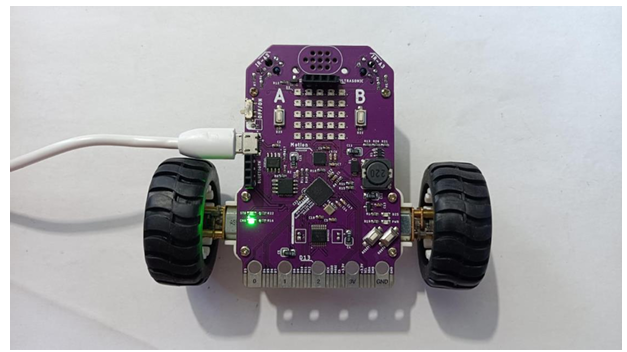
Step 2: Select the board and port, then upload the code.
Warning: If you face any issue while uploading the code, then first “OFF” the TeBoT. Next, turn “ON” the TeBoT. Press the “BOOT” button for a short time then press the “RESET” button once. Then release the “BOOT” button.
You will get a drive. Then upload the code.
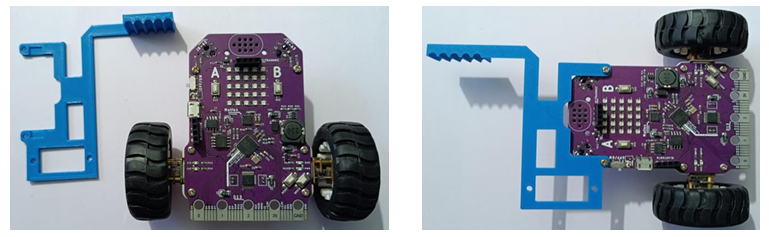
Step 3: Now remove USB cable from TeBoT and connect the 3D printed part as shown below.
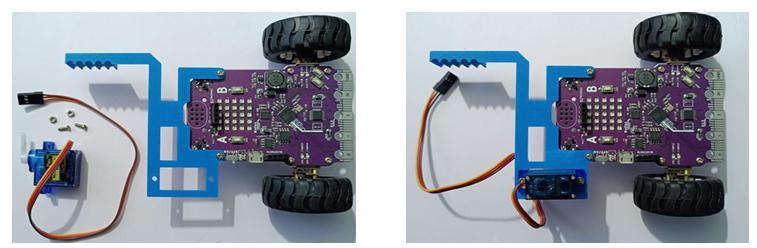
Step 4: Now connect the servo motor and connect as shown below.
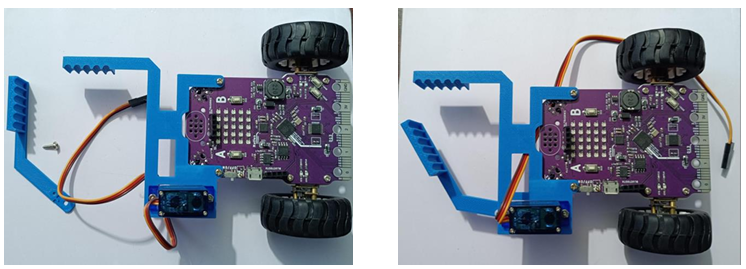
Step 5: Connect another 3D Printed part as shown below.
Step 6: Now connect the servo pins with TeBoT.
- Connect VCC (Red Wire) of servo with VCC (1st pin from right to left in ultrasonic port) of TeBoT.
- Connect GND (Brown Wire) of servo with GND (1st pin from left to right in ultrasonic port) of TeBoT.
- Connect Signal (Orange Wire) of servo with Pin No 14 (2nd pin from left to right in ultrasonic port) of TeBoT.
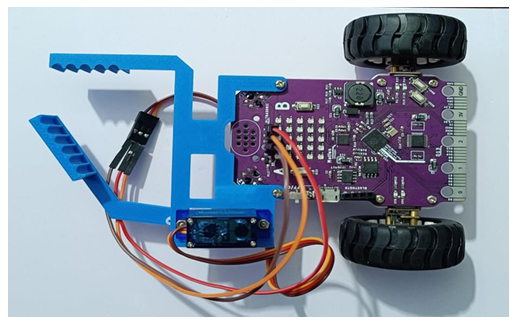
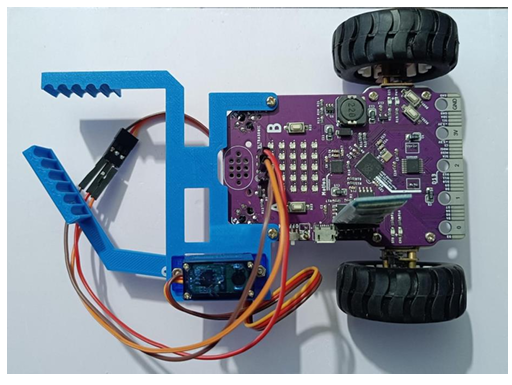
Step 7: Now connect the Bluetooth module with TeBoT.
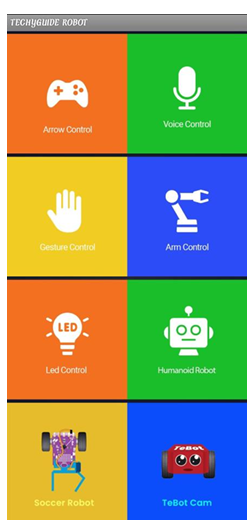
Step 8: Now download the apk file “Techyguide Robot” on your mobile and install it. You will see this interface.
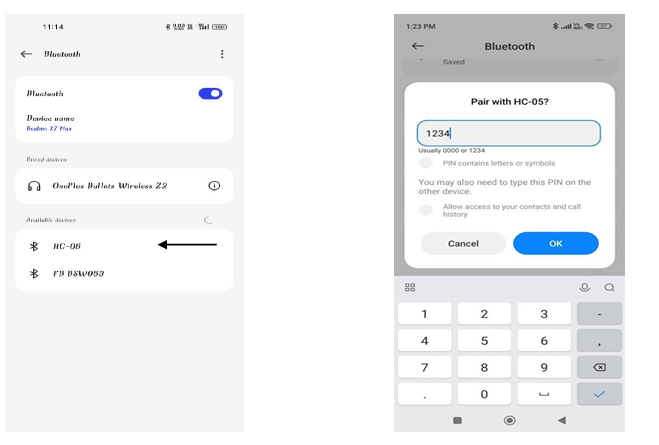
Step 9: Now turn on the Bluetooth on your phone and select “HC-05”. Then give the pin as “1234” and click on “OK”. Then your Bluetooth will be paired with your mobile.
Step 10: Now go to the app and click on “Soccer Robot”.
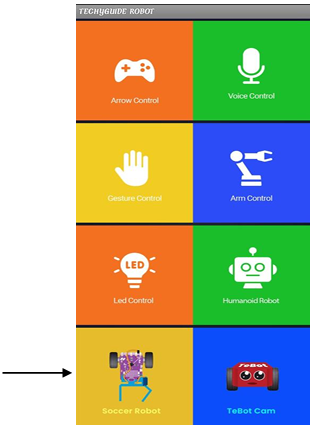
Step 11: After clicking on “Soccer Robot” you will see the interface. Then click on “Connect” and select “HC-05”. Then your Bluetooth will be connected with your mobile.
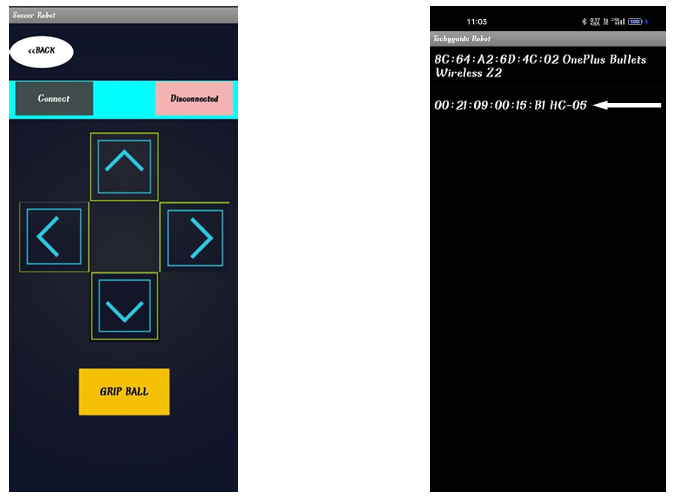
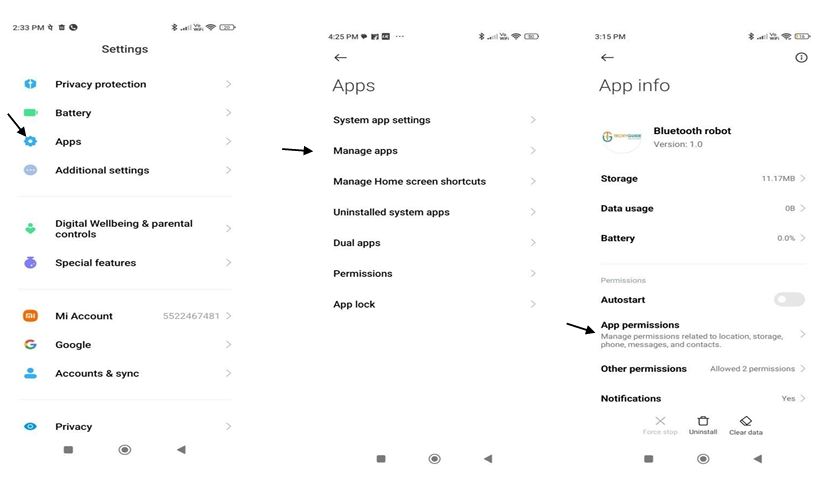
NOTE: If you can’t see the Bluetooth name after clicking on the “Connect”, then follow the below steps.
- Go to your phone setting.
- Click on Apps.
- Click on Manage apps.
- Then click on “Techyguide Robot” app.
- Now go to App Permission.
- There you get Nearby devices under Not Allowed.
- So click on Nearby devices and give access Allow.
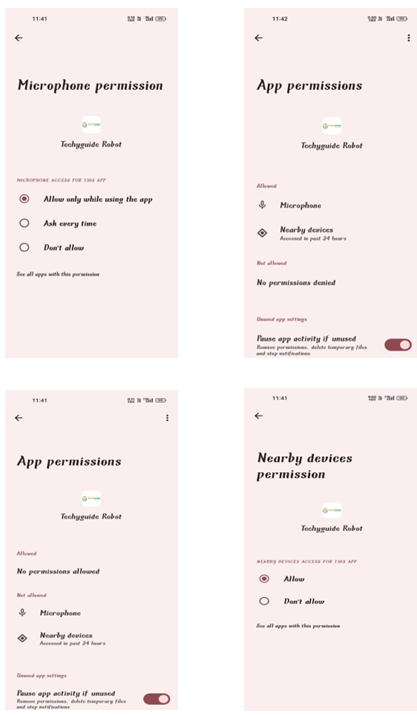
Now, again go to the app and connect the Bluetooth. Click on the arrows to move “Forward”, “Backward”, “Left” and “Right”. To hold the ball you have to click on “Grip Ball”. When you want to release the ball to make a goal again you need to click on “Grip Ball”.
Conclusion: From this project we got the idea about all components, connection of those components and made the Soccer Robot.